How to Add a Frosted Glass Navigation to Your Squarespace Site
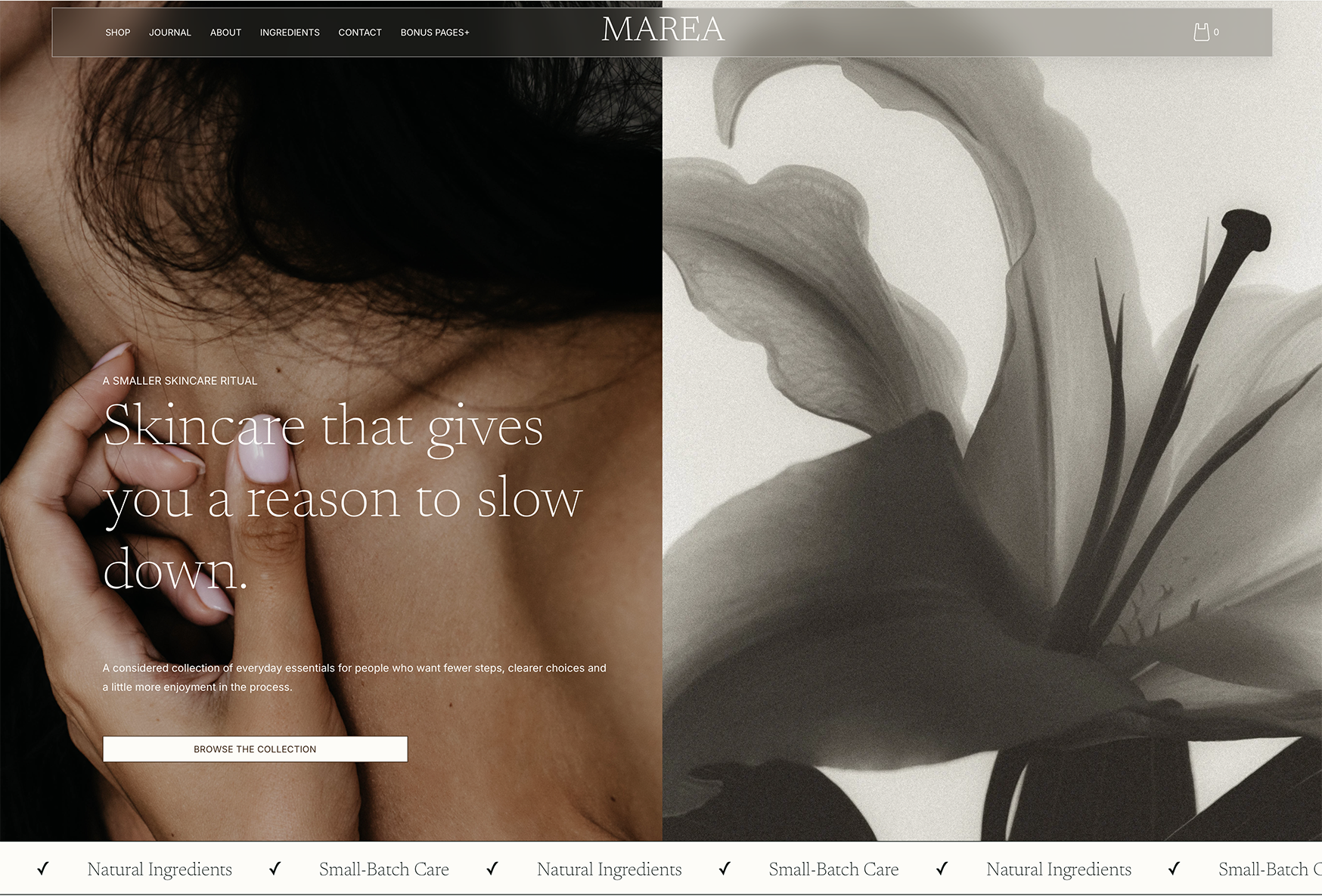
There’s something lovely about a navigation bar that feels present without sitting heavily on top of the page.
This small Squarespace CSS adjustment creates a translucent, frosted-glass effect over your hero image. It works especially well with editorial photography, soft neutrals, and full-bleed homepage layouts where you want the navigation to feel part of the image rather than separate from it.
This version is designed for Squarespace 7.1 and applies to the homepage only.
Before You Begin
This is a small piece of custom CSS, so it’s worth saving a copy of your existing code before you start. Custom CSS sits outside Squarespace’s standard design settings, which means selectors can occasionally need updating after platform changes.
The effect also works best when your header sits over the first section of your page.
Where to paste the CSS
In Squarespace, open:
Website → Website Tools → Custom CSS
Paste the code below into the CSS panel and select Save.
Make sure you copy the code exactly as shown. The code uses normal CSS characters, so don’t add backslashes before the symbols.
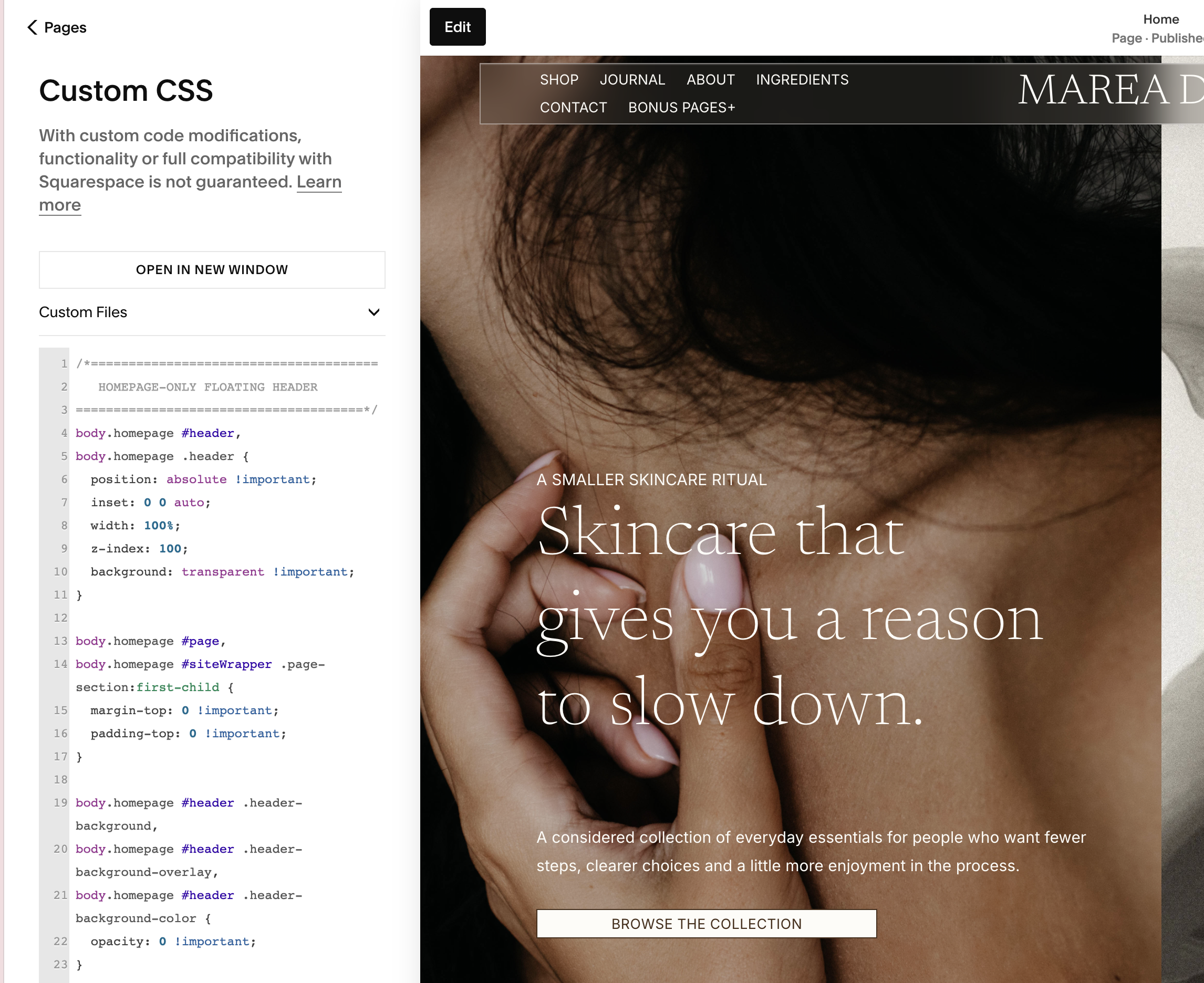
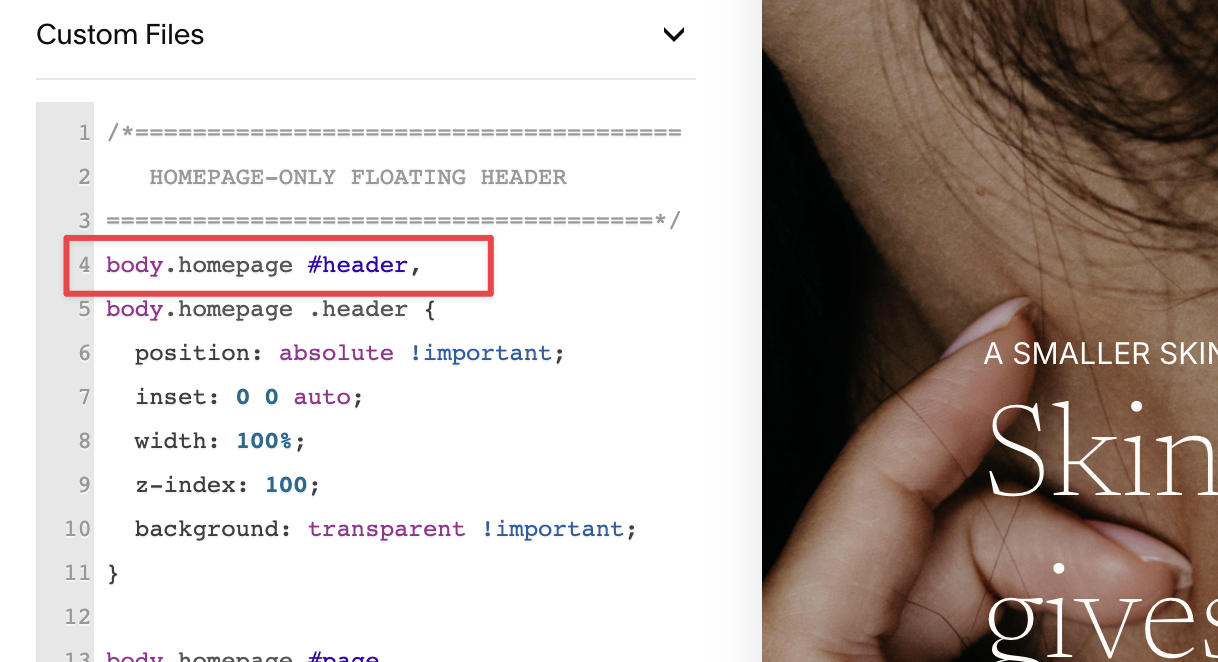
/* HOMEPAGE FROSTED GLASS NAVIGATION */

body.homepage #header,
body.homepage .header {
  position: absolute !important;
  inset: 0 0 auto;
  width: 100%;
  z-index: 100;
  background: transparent !important;
}

/* Let the hero image begin at the top of the page */
body.homepage #page,
body.homepage #siteWrapper .page-section:first-child {
  margin-top: 0 !important;
  padding-top: 0 !important;
}

/* Hide Squarespace's default header background */
body.homepage #header .header-background,
body.homepage #header .header-background-overlay,
body.homepage #header .header-background-color {
  opacity: 0 !important;
}

/* Remove any full-width scrim */
body.homepage #header::after,
body.homepage .header::after {
  content: none !important;
}

/* Create the glass panel */
body.homepage #header .header-inner {
  position: relative;
  isolation: isolate;
  box-sizing: border-box;

  width: calc(100% - 8vw);
  max-width: none;
  margin: clamp(18px, 3vw, 60px) auto 0;
  padding-inline: clamp(28px, 3vw, 64px) !important;

  background: rgba(82, 76, 70, 0.30) !important;
  border: 1px solid rgba(255, 255, 255, 0.42);
  border-radius: 0;

  -webkit-backdrop-filter: blur(18px);
  backdrop-filter: blur(18px);

  box-shadow:
    inset 0 1px 0 rgba(255, 255, 255, 0.12),
    0 12px 30px rgba(0, 0, 0, 0.08);
}

/* Add breathing room around the navigation items */
body.homepage #header .header-display-desktop,
body.homepage #header .header-display-mobile {
  box-sizing: border-box;
  padding-inline: clamp(8px, 1vw, 20px);
}

/* Mobile spacing */
@media screen and (max-width: 767px) {
  body.homepage #header .header-inner {
    width: calc(100% - 24px);
    margin-top: 12px;
    padding-inline: 20px !important;
  }
}

/* Fallback for browsers without backdrop blur */
@supports not (
  (-webkit-backdrop-filter: blur(1px)) or
  (backdrop-filter: blur(1px))
) {
  body.homepage #header .header-inner {
    background: rgba(82, 76, 70, 0.86) !important;
  }
}
What The CSS Is Doing
The header is positioned over the hero image instead of taking up space above it. The navigation panel then uses a translucent background and backdrop-filter to softly blur whatever sits behind it.
The thin white border gives the panel a little definition, while the generous padding keeps the first navigation link and cart icon from feeling crowded at the edges.
On browsers that don’t support backdrop blur, the CSS displays a darker translucent panel instead. It won’t blur the image, but the navigation will still remain readable.
If nNothing Changes
Squarespace usually adds homepage to the homepage’s body class. If the CSS doesn’t appear to work, your site may be using a page-specific class instead.
You can check this by opening the published homepage, inspecting the <body> element, and looking for a class beginning with:
collection-id-
If you find one, replace every instance of:
body.homepage
with your own collection ID selector.
Want The Effect Across Your Whole Site?
Remove: body.homepage from the selectors. That will make the frosted navigation appear on every page instead of only the homepage.
To remove the effect, delete this CSS from the Custom CSS panel. Your normal Squarespace header settings will return.